
Why Printer Prints Gibberish: Common Causes & Simple Fixes
| Jan 09, 2026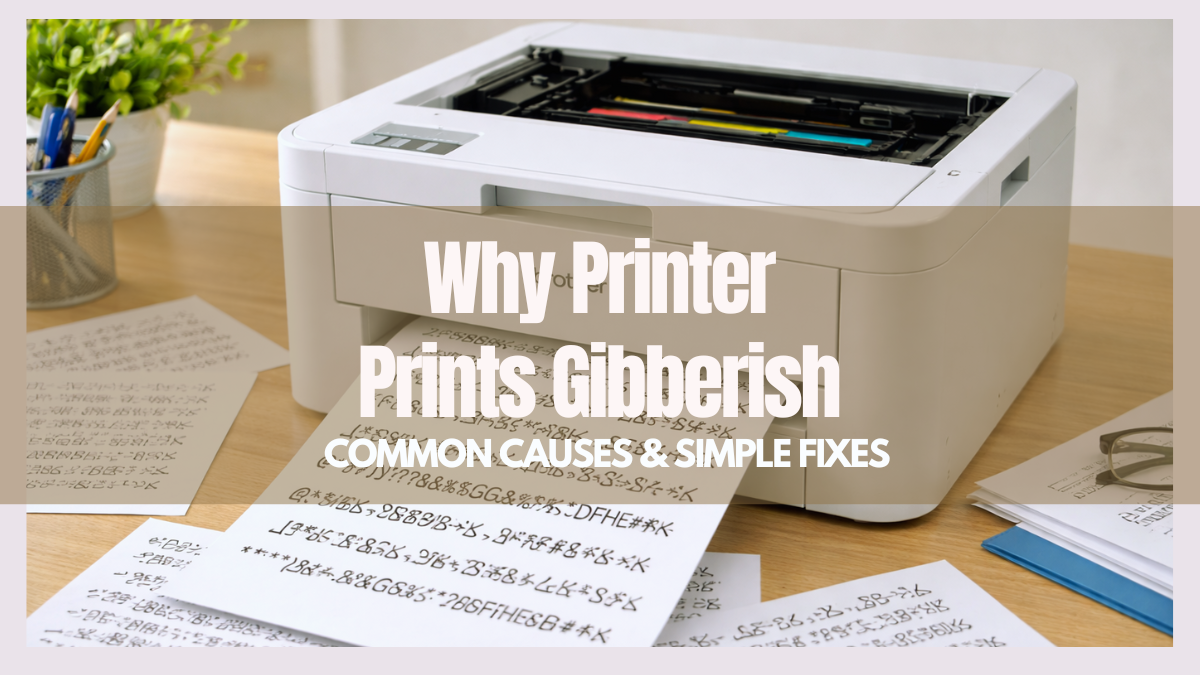
Ever sent a document to your printer, only to get pages full of random symbols and unreadable text? This is called printing gibberish, and it’s one of the most common printing errors. Unlikely with a printer printing blank pages, gibberish printing wastes paper and interrupts work. It can happen on home printers, office machines, or even receipt printers, printing gibberish.
The issue often occurs with HP, Ricoh, and Xerox printers, especially on Windows 10 and Windows 11. Causes include corrupted drivers, wrong printer settings, or network and cable problems. Many users see repeated random characters, lines of code, or strange symbols instead of their intended document.
In this article, you’ll learn:
- What does it mean when your printer prints gibberish
- Why does this problem occur, and what triggers it
- Step-by-step solutions on how to fix printer printing gibberish
What Does “Printing Gibberish” Mean?
When your printer prints gibberish, it cannot read or process the data sent from your computer correctly. Instead of your document, it prints random symbols, letters, or unreadable text. This is different from a printer printing blank pages, but it is one of the common printer problems and common printing errors users face.
Common signs of printing gibberish include:
- Pages with single lines of code or random characters
- Full pages of hieroglyphics or symbols
- Receipt printer printing gibberish instead of transaction details
A test page often prints correctly because it uses a basic format the printer understands. However, documents from Word, PDF, or web apps may fail, producing gibberish.
Why Does the Printer Print Gibberish? (Causes Explained)
If your printer prints gibberish, it is usually because the printer cannot interpret the data sent from your computer correctly. The main reasons include driver problems, connection issues, software conflicts, and incorrect printer settings.
1. Printer Driver Problems
Driver issues are the most frequent reason for gibberish. Common problems include:
- Wrong or corrupt drivers that prevent proper communication with the printer
- Drivers incompatible with an OS upgrade, such as Windows 10 or Windows 11
- Sending raw PDF or other file types without the correct driver can lead to printing gibberish
Proper driver installation is essential, especially for receipt printers printing gibberish, where transactions may fail or print incorrectly.
2. Connection & Hardware Issues
Physical or network issues can also trigger gibberish printing:
- Loose, damaged, or faulty USB or network cables
- Printer port problems or network interference
- Incorrect TCP/IP setup for network printers
Even if the printer is new, bad connections can make it print random symbols instead of the document.
3. Software & Operating System Conflicts
Sometimes the problem comes from the computer or software:
- Applications sending wrong print data can confuse the printer
- OS print spooler corruption can cause repeated gibberish pages
These conflicts often occur after updates or after installing multiple applications that use printing functions.
4. Printer Settings & Language Errors
Incorrect printer configurations are another major cause:
- Wrong Page Description Language (PDL) or printer settings
- Bi-directional communication errors
- Printer memory overload or buffer issues
Even a receipt printer that prints gibberish can be solved by correcting these settings. Adjusting the printer language and clearing memory often stops unwanted random characters.
How to Fix Printer Prints Gibberish: Step-by-Step Solutions
If your printer prints gibberish, fixing it doesn’t have to be complicated. Most cases can be resolved with simple steps that address drivers, connections, and settings. Following these steps can also prevent other common printer problems.
1. Restart & Reset Printer
- Power cycle your printer: unplug it for 30–60 seconds and plug it back in.
- Clear the printer memory to remove corrupted print jobs.
Restarting often stops continuous printing gibberish and resets internal buffers.
2. Cancel Ongoing Print Jobs
- Open the print queue via Control Panel → Devices and Printers.
- Cancel all pending jobs to stop unwanted printing.
This is essential when your printer is stuck spitting out random characters.
3. Update or Reinstall Printer Drivers
- Identify the correct driver for your printer brand (HP, Ricoh, Xerox).
- Uninstall the old driver and reinstall the latest version from the manufacturer’s website.
- Reboot your computer after installation.
Driver updates are the most reliable fix for a printer that prints gibberish.
4. Run Windows Printer Troubleshooter
- Go to Settings → Update & Security → Troubleshoot → Printer.
- Follow the on-screen instructions.
The troubleshooter can detect corrupted drivers, spooler errors, and other issues causing printing gibberish.
5. Check Printer Connections & Cables
- Use a direct USB connection instead of a hub or shared network.
- Replace or test printer cables for damage.
- Verify TCP/IP settings for network printers.
Loose or faulty connections are a frequent cause of a printer that prints gibberish.
6. Test Printing from Different Applications
- Print a test page and compare it with documents from Word, PDF, or web browsers.
- Identify which file types trigger gibberish.
This helps determine whether the issue is file-specific or system-wide.
7. Adjust Printer Settings
- Correct the Page Description Language (PDL) in printer settings.
- Disable bi-directional support or informational notifications if necessary.
- Reset the printer to factory defaults if the problem persists.
Proper settings prevent the printer from misreading print jobs, solving both the gibberish and the receipt printer printing gibberish problems.
Preventing Gibberish Printing in the Future
Once your printer prints gibberish, preventing it from happening again is easier than you think. Regular maintenance and proper setup can stop wasted paper, lost time, and the frustration of the printer printing blank pages or other common printing errors. Many common printer problems arise from outdated drivers, faulty connections, and misconfigured settings, so proactive steps are essential.
- Keep Printer Drivers Updated: Outdated drivers cause many common printer problems and printing errors. Updating drivers ensures compatibility with Windows 10, Windows 11, and other applications, reducing printer prints gibberish.
- Test Print After Updates: After installing new drivers or upgrading your OS, run a test print. This confirms the printer correctly reads data and prevents repeated printing of gibberish.
- Maintain Cables and Network Connections: Loose or damaged USB and network cables, or wrong TCP/IP settings, often cause the printer to print gibberish. Proper connections prevent miscommunication with the printer.
- Regular Test Prints: Print test pages regularly to monitor printer health. Detect early signs of errors like random symbols or unreadable text to keep printing smooth.
Conclusion
When your printer prints gibberish, it means the printer cannot read the data sent from your computer. This is one of the common printing errors and common printer problems, different from the printer printing blank pages. Causes include driver issues, faulty connections, software conflicts, or incorrect printer settings. Even a receipt printer printing gibberish can produce unreadable symbols or text.
Most cases of printing gibberish are fixable without replacing the printer. Restarting the printer, clearing the print queue, updating drivers, checking connections, and adjusting settings usually solve the problem. The Windows printer troubleshooter can also detect and fix errors automatically.
By following these steps and maintaining your printer, you can prevent future issues and ensure smooth, readable prints.
Frequently Asked Questions
1. Does my printer print gibberish because it’s broken?
Most cases of printer prints gibberish are not due to hardware failure. They are usually caused by driver issues, corrupted print queues, or incorrect printer settings, meaning the printer itself is generally fine, and repair isn’t needed.
2. Can new printers also print gibberish?
New printers, including HP, Ricoh, and Xerox that print gibberish, can experience this problem if drivers are outdated or the operating system has recently been upgraded. Proper driver installation is crucial to prevent errors.
3. Is printing gibberish the same as a printer printing blank pages?
Printing of gibberish occurs when the printer misinterprets the data sent from your computer, producing random symbols or unreadable text. In contrast, printer printing blank pages happens when no data reaches the printer, and both issues require different solutions.
4. Do I need to replace my printer to fix gibberish printing?
Replacing the printer is rarely necessary because most printing gibberish problems can be solved with simple steps. Restarting the printer, clearing the print queue, updating or reinstalling drivers, checking cables, and adjusting settings usually restores normal printing.
5. Does printing of gibberish only happen with PDFs or Word documents?
Gibberish can appear with almost any file type, including images, plain text, or receipts, which a printer may print incorrectly if it cannot read the data correctly. Ensuring proper drivers and settings prevents these random symbols from appearing.
Related Articles
Why Is My Printer Printing Blank Pages: Explore Easy Fixes!
Common Printer Problems And Solutions
Common Printing Errors That Waste Ink: Tips To Avoid Them
Stop Brother Printer Printing Blank Pages: Easy Solutions Inside